HELP CENTER
Everything you need to know about smart EV charging
How It Works
JustPlugz provides prepaid electric bike charging through simple QR code payments. Follow these steps to charge your vehicle:
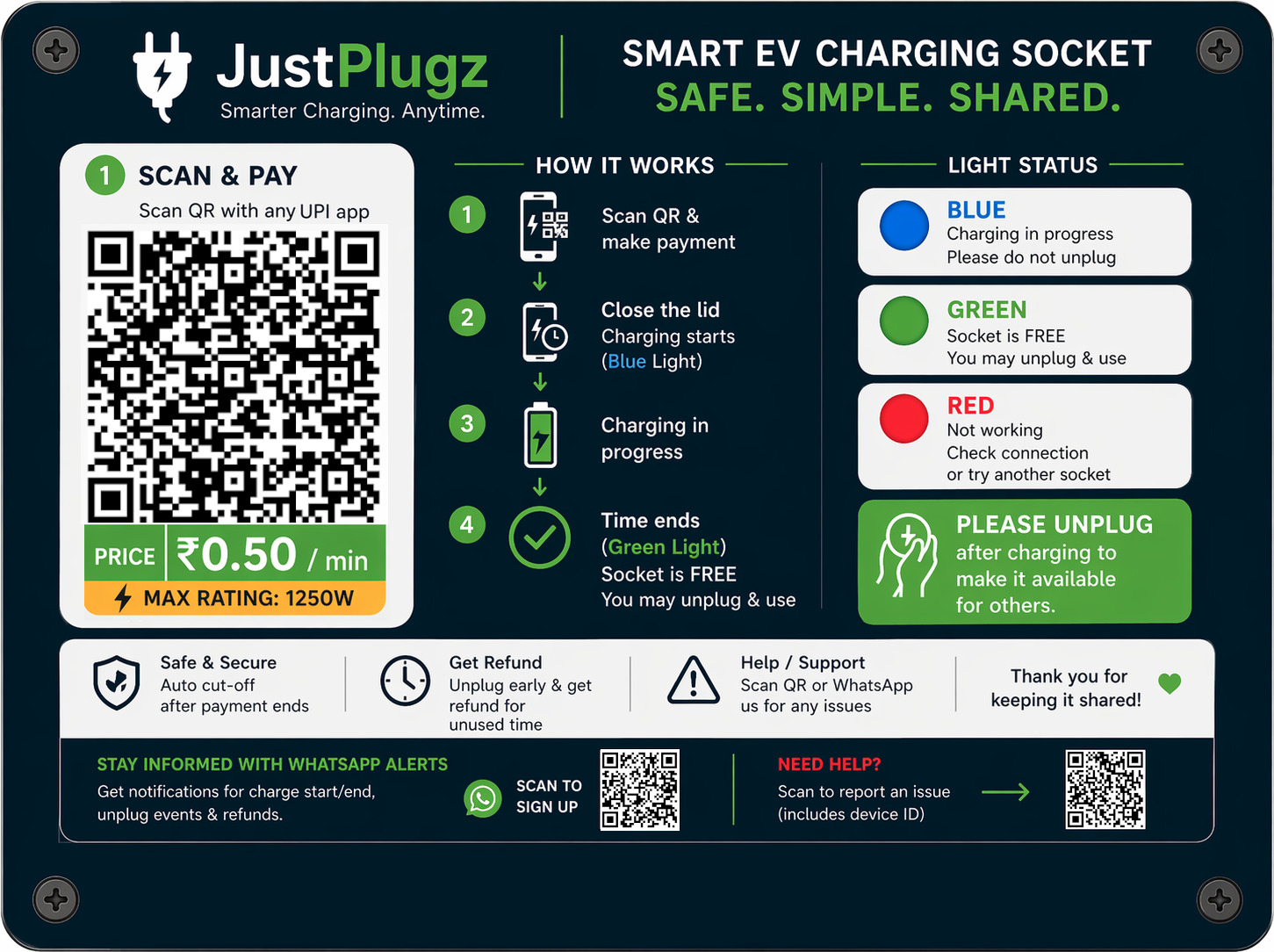
JustPlugz Charging Panel with Payment QR Code (left) and WhatsApp QR Code (right)
Scan & Pay
Scan the Payment QR code and pay for the amount you want
Plug In Vehicle
Plug in and close the socket cover properly
Enable WhatsApp Notifications
Scan WhatsApp QR code and click Send (one-time setup)
Get Notified
Receive alerts when charging completes
Step-by-Step Instructions
Step 1: Scan the Payment QR Code (Left Side)
Use any UPI payment app (Google Pay, PhonePe, Paytm, etc.) to scan the Payment QR Code on the left side of the panel. Pay for the amount you want at ₹0.50 per minute. You can pay any amount - the charging time will be calculated accordingly.
Step 2: Plug In Your Vehicle & Close Socket Cover
IMPORTANT: After payment, plug in your vehicle and ensure the socket cover is properly closed. If the cover remains open after payment, you will be automatically refunded after 1 minute. This safety feature ensures proper connections before charging begins.
Step 3: Enable WhatsApp Notifications (One-Time Setup)
Scan the WhatsApp QR Code on the right side of the panel with your phone camera or WhatsApp scanner, then click "Send" to enable notifications. This is a one-time setup - once configured, you will receive messages at any JustPlugz charging station until you opt out by sending STOP to the same number.
Step 4: Wait for Completion Notification
The station will notify you via WhatsApp when your charger has completed the charge. Unplug promptly to get reimbursed for unused minutes. Note: Leaving your vehicle connected after charging completes will NOT make you eligible for a refund - only unused time before completion is refundable.
LED Status Indicators
Each charging socket has an LED indicator that shows its current status. Understanding these lights will help you use the stations effectively:
Green Light - Available
The socket is ready and available for use. You can scan the QR code and make a payment to start charging.
Blue Light - Charging in Progress
Someone is currently using this socket. The light will turn green when the session ends and the socket becomes available.
Blinking Blue Light - Socket Cover Warning
Safety Alert: The socket cover was opened during an active charging session. You have 5 seconds to close the cover. If not closed, the socket will shut off and refund unused minutes. This prevents unauthorized use and ensures electrical safety.
Red Light - Out of Order
This socket is temporarily unavailable due to maintenance or a technical issue. Please use another socket or contact support.
Yellow/Amber Light - Station Starting
The station is booting up or connecting to the network. Wait a few moments for it to turn green.
Wait for Green
Always wait for the LED to be GREEN before scanning the QR code. Payments made when the station is not ready may require manual refund processing.
Technical Specifications
Charging Power
- Socket Rating: 6A (Ampere) @ 230V AC
- Maximum Power: Up to 1250W
- Actual Power: Depends on your vehicle's charger
- Socket Type: Standard 3-pin Indian plug
Pricing
- Rate: ₹0.50 per minute (₹30 per hour)
- Minimum Payment: Any amount via Razorpay (most apps allow ₹1 minimum)
- Charging Time: You get exactly the minutes you paid for
- Example: Pay ₹50 = Get 100 minutes of charging
Flexible Payments
Pay only for what you need! If you're not sure how long to charge, start with a smaller amount and make additional payments if needed.
Troubleshooting
- Confirm your payment was successful (check your payment app)
- Wait 10-20 seconds - the socket may take a moment to activate
- Check if the socket cover is properly closed - if left open for 1 minute after payment, you'll be refunded
- Check if your vehicle charger is properly plugged in
- If still not working, contact support by scanning the QR code on the panel
- Make your payment first
- Immediately plug in your vehicle
- Close the socket cover properly within 1 minute
- The charging session will then start automatically
- If you close the cover within 5 seconds, charging will continue normally
- If you don't close it, the socket will shut off for safety
- Any unused minutes will be automatically refunded
- This safety feature prevents unauthorized use and electrical hazards
- Clean the QR code sticker if it's dirty or wet
- Ensure good lighting - use your phone's flashlight if needed
- Hold your phone steady and at the right distance (6-12 inches)
- Try different QR code scanner apps if your payment app isn't working
- Ensure the station LED is GREEN before scanning
- Someone opened the socket cover during charging
- Power interruption at the location - your charge will resume for the remaining time once power is restored
- Station went offline temporarily
Payments & Refunds
Accepted Payment Methods
- UPI only (Google Pay, PhonePe, Paytm, etc.)
All payments are processed securely through Razorpay Payment Gateway.
Automatic Refunds
You'll receive automatic refunds in these situations:
- Early Termination: Unplugged before time ended
- Battery Full: Vehicle stopped charging (battery reached 100%)
- Manual Stop: You opened the socket cover
- Technical Issues: Station error or power failure
Refund Timeline
- Initiated: Immediately when session ends
- Processing: 5-7 business days to your original payment method
- Notification: WhatsApp message with amount and reason
Note
Once a charging session starts, payments are non-refundable except for the unused minutes calculated automatically. Plan your charging time accordingly.
Safety Guidelines
Socket Cover Safety Feature
Critical Safety Measure
Opening the socket cover while a session is active will trigger an important safety sequence:
- The LED indicator will blink blue for 5 seconds
- If you close the cover within those 5 seconds, charging will continue normally
- If the cover remains open after 5 seconds, the socket will be switched OFF immediately
- If there are unused minutes when the socket switches off, you will be automatically refunded
Why This Safety Feature Exists
- Prevents Theft: Stops unauthorized users from unplugging your charger and using your paid session for their vehicle
- Electrical Safety: Ensures the charger can be safely removed without risk of electric shock when the cover is open
- User Control: Gives you 5 seconds to adjust connections or close the cover if accidentally opened
General Safety Guidelines
- Weather Protection: Stations are weather-resistant, but avoid charging during heavy rain for your own safety
- Proper Connections: Ensure your vehicle charger plug is fully inserted into the socket
- Don't Force: If the plug doesn't fit easily, don't force it - check for compatibility
- Supervision: Monitor your vehicle during charging, especially the first few times
- Emergency Stop: In case of any smoke, sparks, or unusual sounds, immediately unplug and contact support
- Keep Area Clear: Don't block other sockets or create tripping hazards with your vehicle/cables
Need Help?
If you couldn't find the answer to your question or need assistance, we're here to help:
WhatsApp Support
Message us on WhatsApp for quick help - Click here to start
When Contacting Support
Please have ready:
- Station serial number (on the station body)
- Socket number (if multi-socket station)
- Payment transaction ID (if relevant)
- Description of the issue and LED color
Response Time
We aim to respond to all support requests within:
- WhatsApp: Within 1-2 hours during business hours (9 AM - 9 PM)
- Payment Issues: Priority handling within 30 minutes
- Technical Issues: Same day response and resolution attempt